Getting Started with Google Gemini
This guide takes you from zero to a working Google AI account, an API key, and your first session running yoker against Google’s Gemini models (free tier available).
yoker connects to Google Gemini as one of its supported model providers. Google offers a free tier you can use to explore yoker and agentic workflows at no cost. You can connect using an API key obtained from Google AI Studio.
You’ll need a personal Google account (Gmail, Google Workspace, etc.) to generate an API key.
Note: Screenshots below show the Google AI Studio account-creation and API key flow. Your actual screens may differ slightly as Google updates its UI.
Create a Google account
If you don’t yet have a personal Google account, create one now. A Google account lets you access Google AI Studio and generate an API key for Gemini.
Open https://accounts.google.com/signup in your browser.
Follow the steps of the sign up process.
Once signed in, you’ll have access to Google services including Google AI Studio.
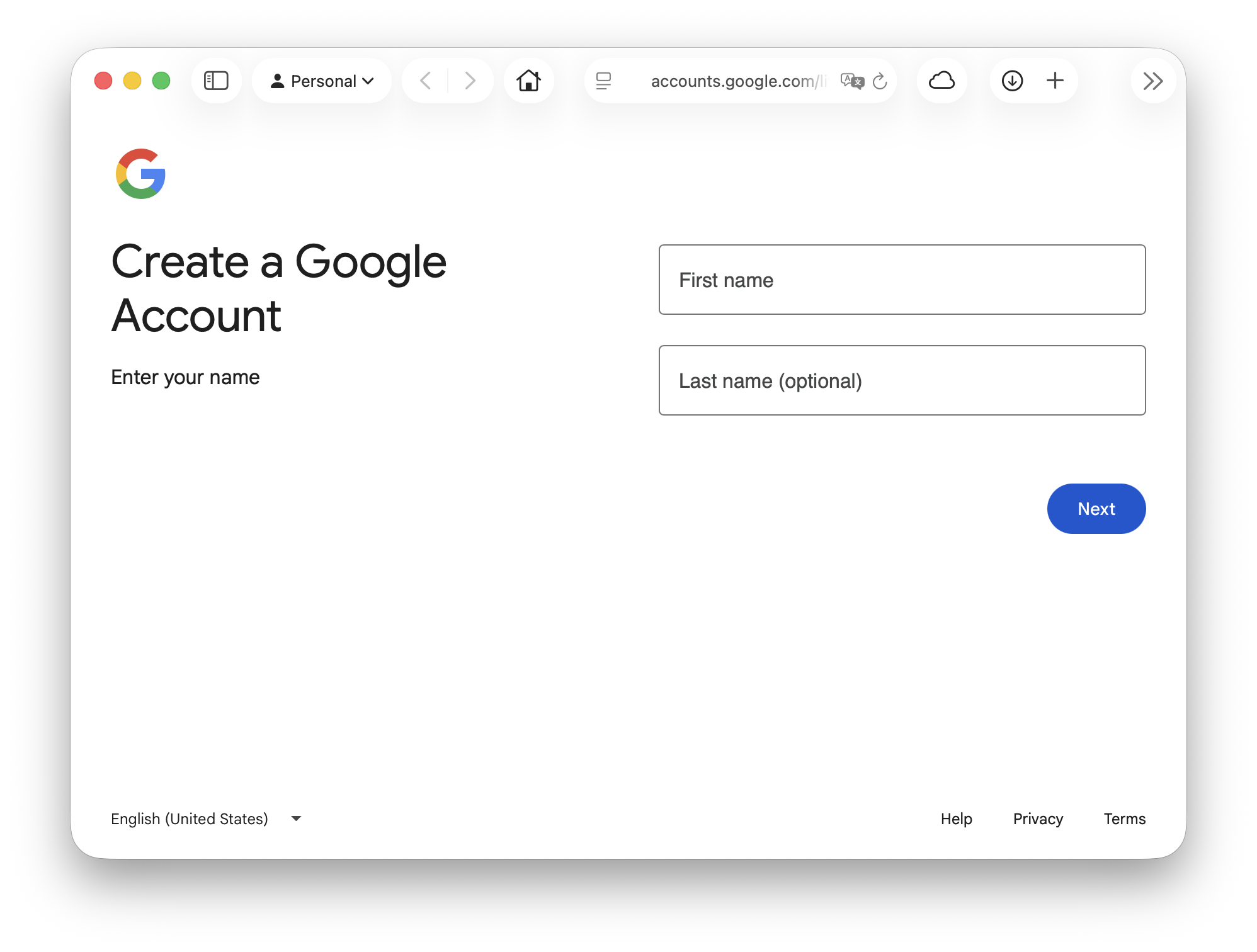
You now have a Google account. The next step is to generate a Gemini API key.
Access Google AI Studio
Google AI Studio is the web interface for working with Gemini models and generating API keys.
Open https://aistudio.google.com/ in your browser.
Sign in with your Google account if prompted.
You’ll land on the Google AI Studio dashboard.
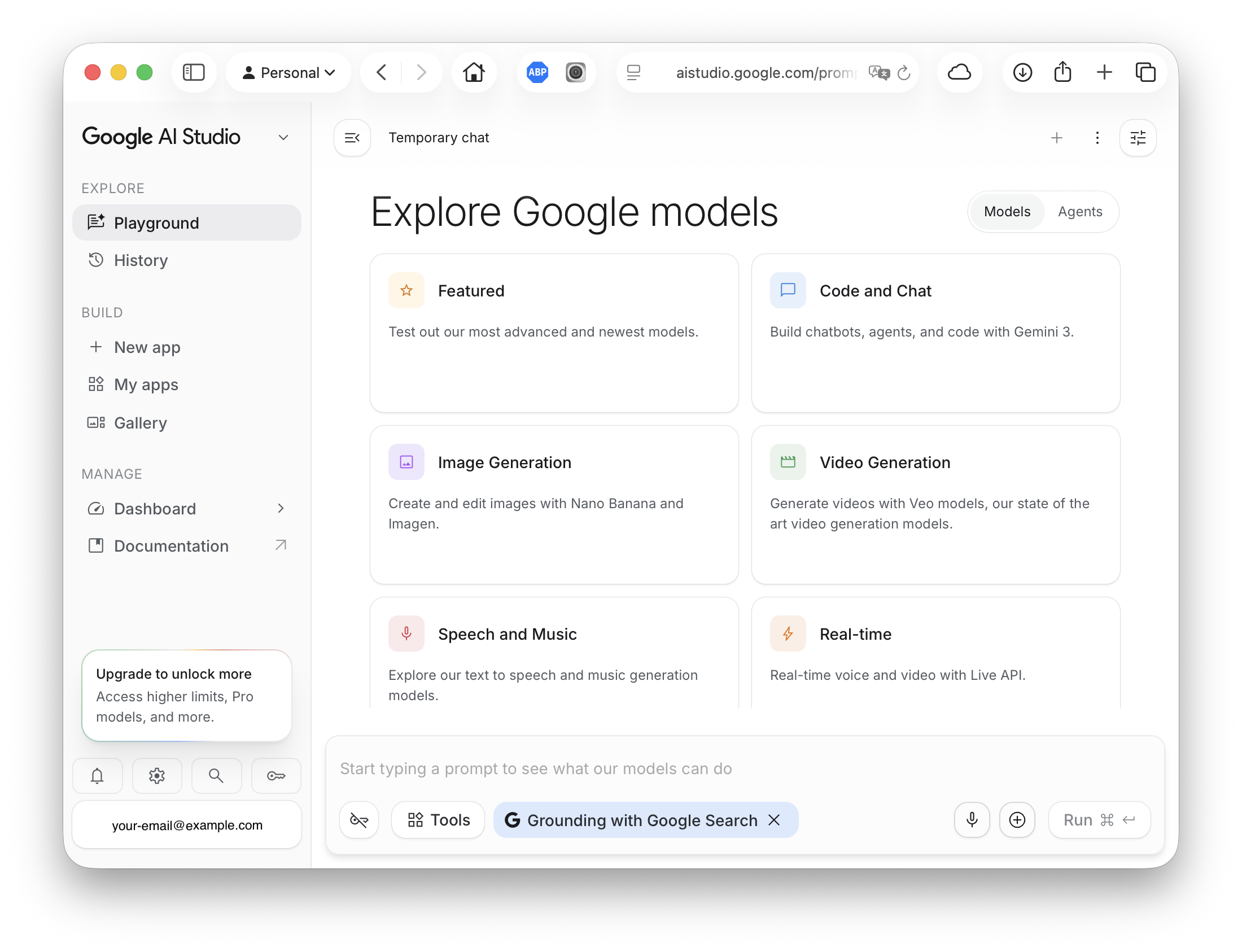
From here you can explore Gemini models, try prompts, and generate API keys.
Generate a Gemini API key
To connect yoker to Gemini models, generate an API key from Google AI Studio.
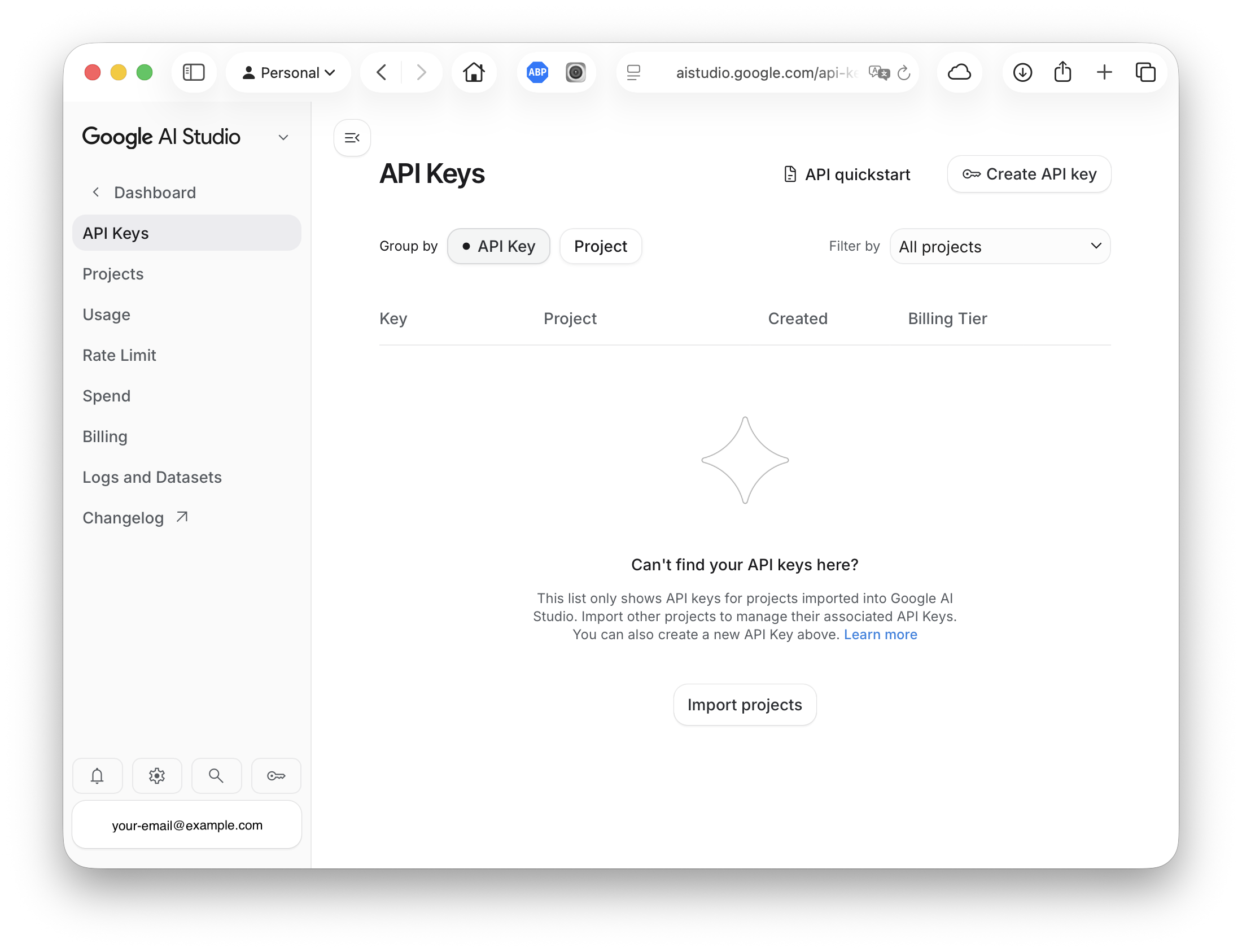
In Google AI Studio (https://aistudio.google.com/), click Get API key at the bottom in the left sidebar (or go to https://aistudio.google.com/app/apikey).
Click Create API key.
Choose a Google Cloud project (or create a new one — the free tier works with the default project).
Copy the generated API key immediately — it starts with
AIzaand is shown only once.
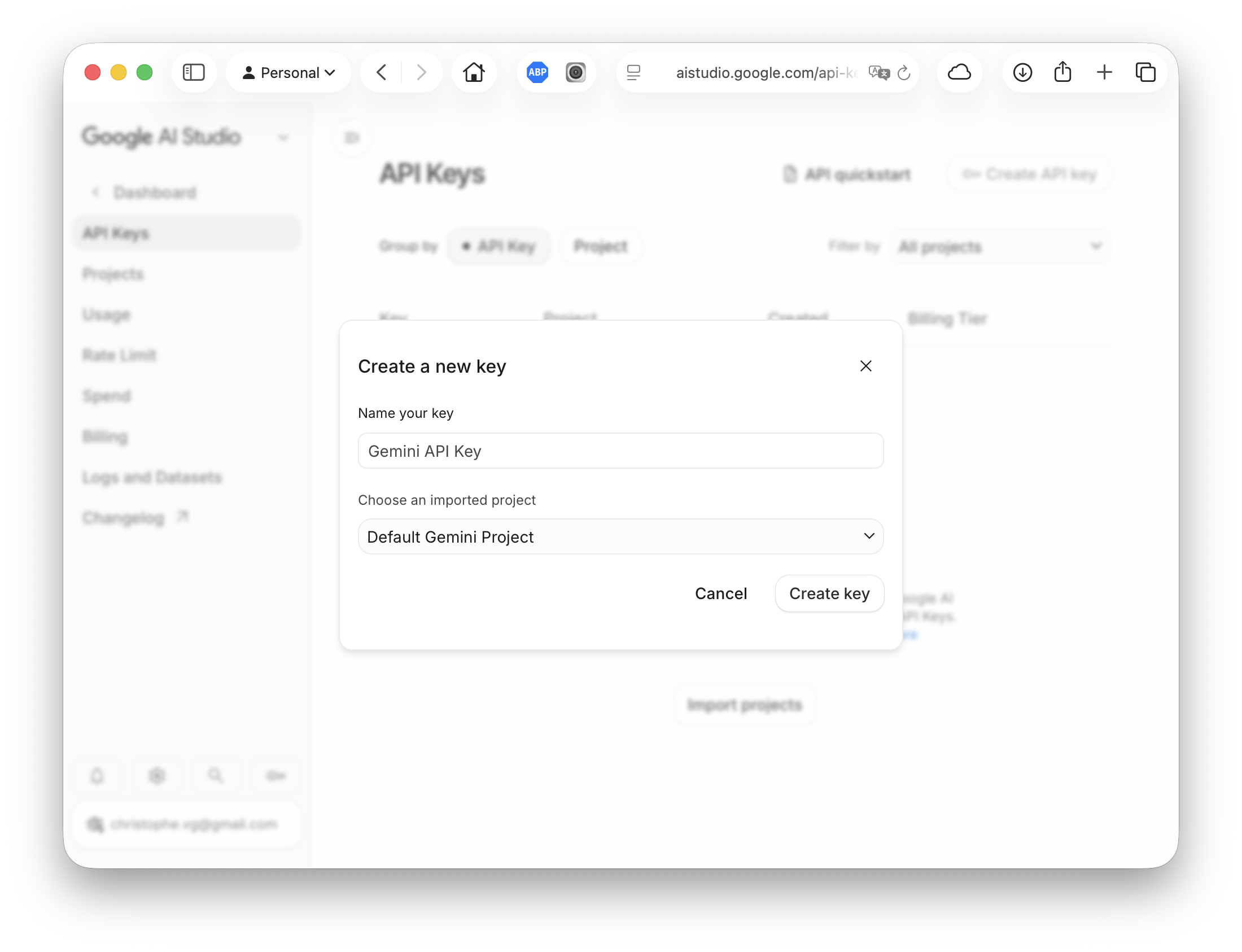
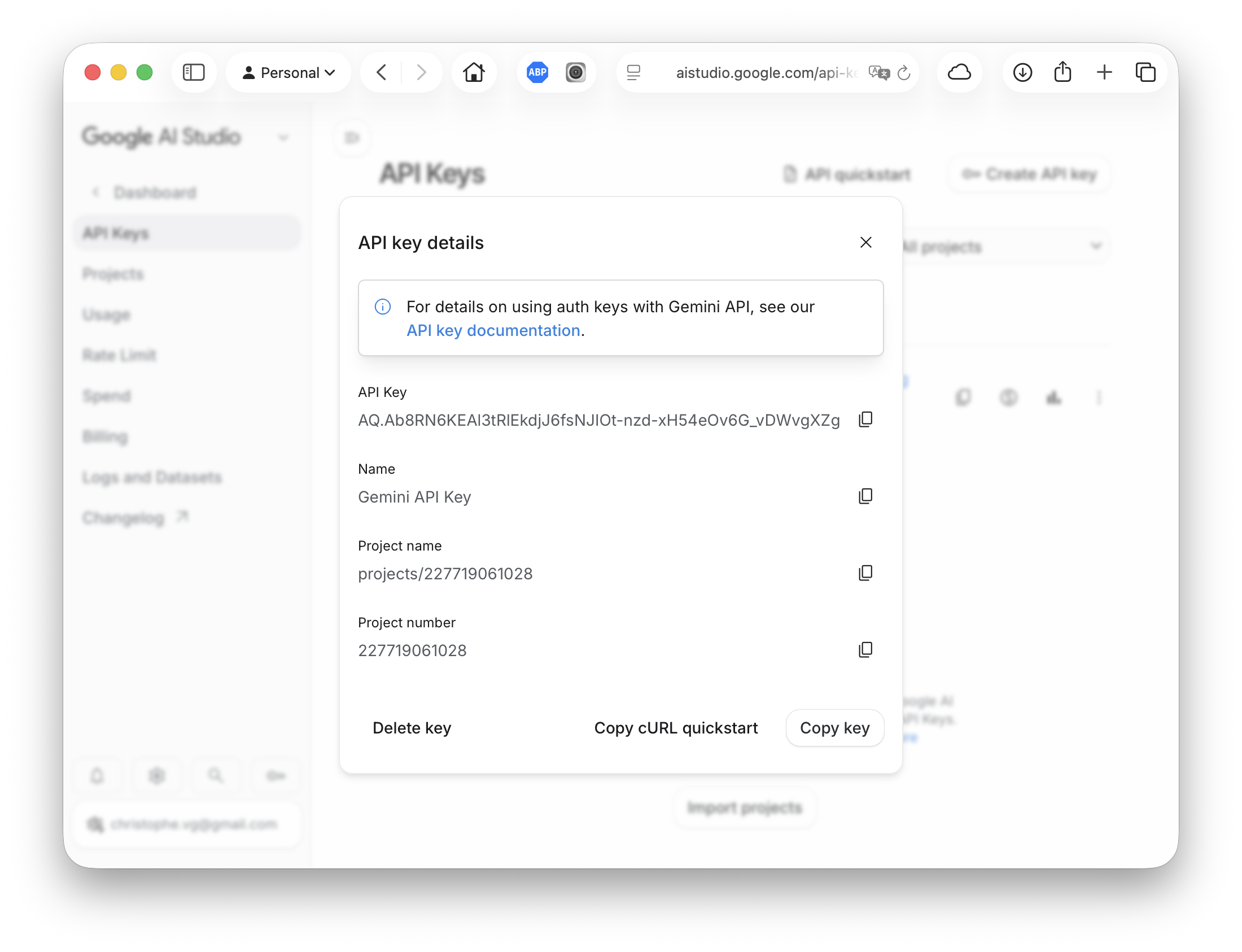
Treat the key like a password: store it in a secret manager, never commit it to source control, and rotate it if it leaks.
Paste the key into the yoker bootstrap wizard when it prompts for it (Step 4), or set it in your config:
[backend.gemini]
api_key = "AIza..."
‼️ If you store the API key in the actual file, only do this in your personal home folder (~/.yoker.toml). Yoker requires this file to be only readable (ans writable) by you. You can also store it in an environment variable and have it injected in the configuration:
[backend.gemini]
api_key = "${GEMINI_API_KEY}"
Verify Gemini access
After generating an API key, verify that Gemini models are reachable.
Using the yoker bootstrap wizard
Run
yokerfrom the command line.If no configuration is found, the wizard will start.
Select Google Gemini as the provider.
When asked if you have a personal Google account, answer yes (you just created one).
Paste your API key when prompted.
Select a model from the curated list (e.g., Gemini 2.5 Flash-Lite).
The wizard will write
~/.yoker.tomland start a session.
Using a config file
Create ~/.yoker.toml with the following:
[backend]
provider = "gemini"

[backend.gemini]
api_key = "AIza..."
model = "gemini-2.5-flash-lite"
Then run:
yoker
If a response comes back, Gemini is working. You can now use yoker with Gemini models.
Free tier limits
Google offers a free tier for Gemini models with generous rate limits:
Requests per minute: Varies by model (typically 15-60 RPM)
Tokens per minute: Varies by model (typically 1M TPM for Flash models)
Free daily quota: Varies by model
For the latest limits, see the Google AI Studio documentation.
If you hit free tier limits, you can upgrade to a paid Google Cloud project with higher quotas.
Model selection
yoker provides a curated list of Gemini models in the bootstrap wizard:
Model |
Use case |
Free tier |
|---|---|---|
Gemini 2.5 Flash-Lite |
Fast, budget-friendly tasks |
Yes |
Gemini 2.5 Flash |
Best price-performance ratio |
Yes |
Gemini 2.5 Pro |
Complex tasks, deep reasoning |
Limited |
Gemini 3.5 Flash |
Agentic and coding tasks |
Limited |
Gemini 3.1 Pro Preview |
Advanced reasoning (preview) |
Limited |
For most users, Gemini 2.5 Flash-Lite or Gemini 2.5 Flash offer the best balance of capability and cost for yoker workflows.
Next steps
Return to the yoker bootstrap wizard and continue past the API key step.
Pick a model from the curated list (Step 5), or accept the default.
For an overview of yoker, see the quickstart.
For advanced configuration, see the configuration reference.